Integrate Opticks Sensor JS using Shopify
In this tutorial we will install the Opticks Sensor JS using Shopify and send purchases to Opticks as conversions using a Custom Pixel.
First, go to your Shopify store admin.
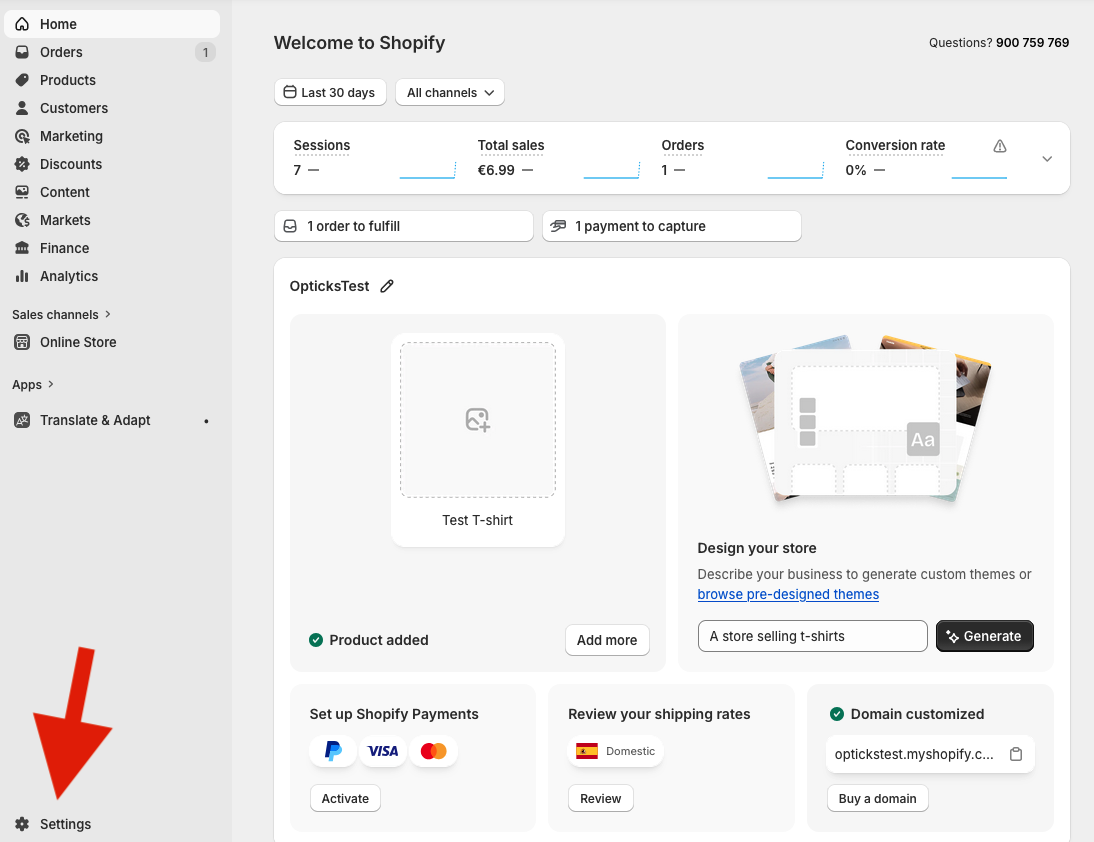
Then click on Settings in the left sidebar, at the bottom:
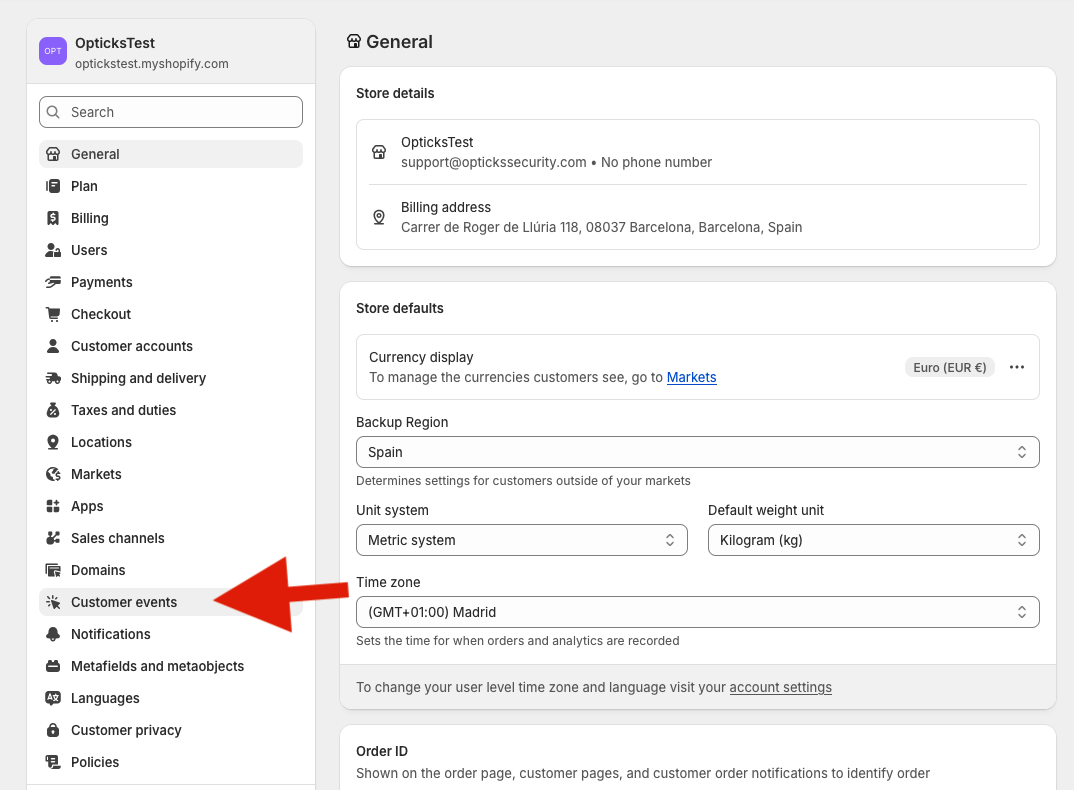
Click on Customer Events
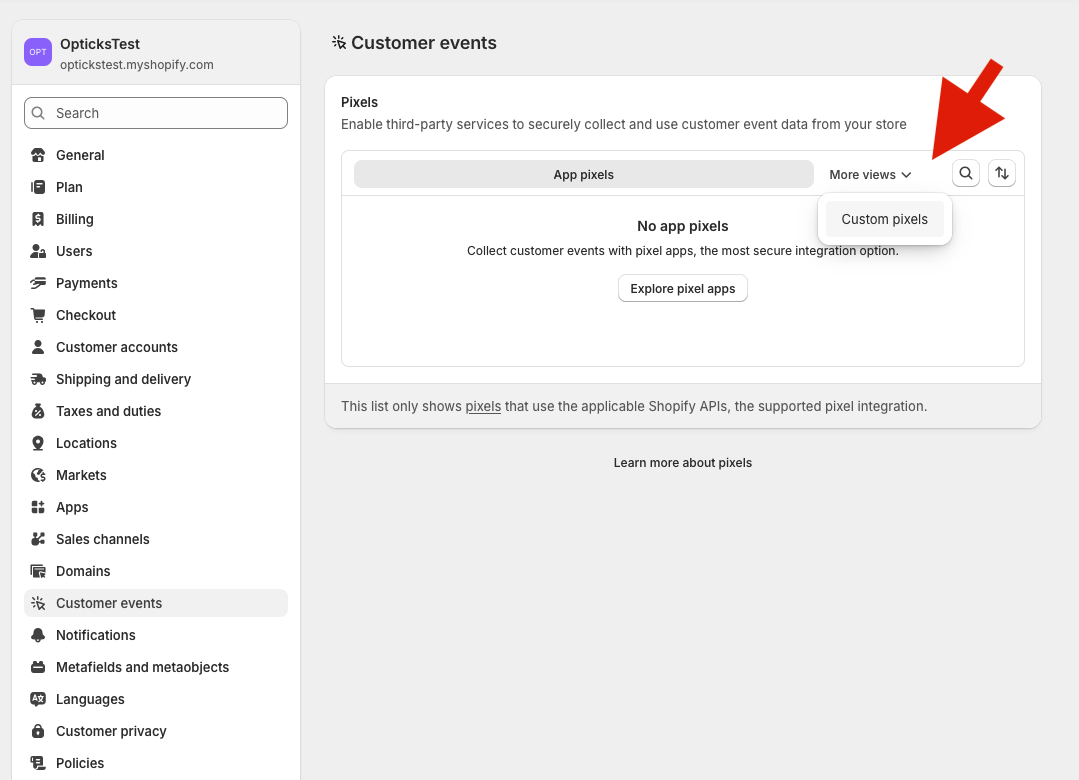
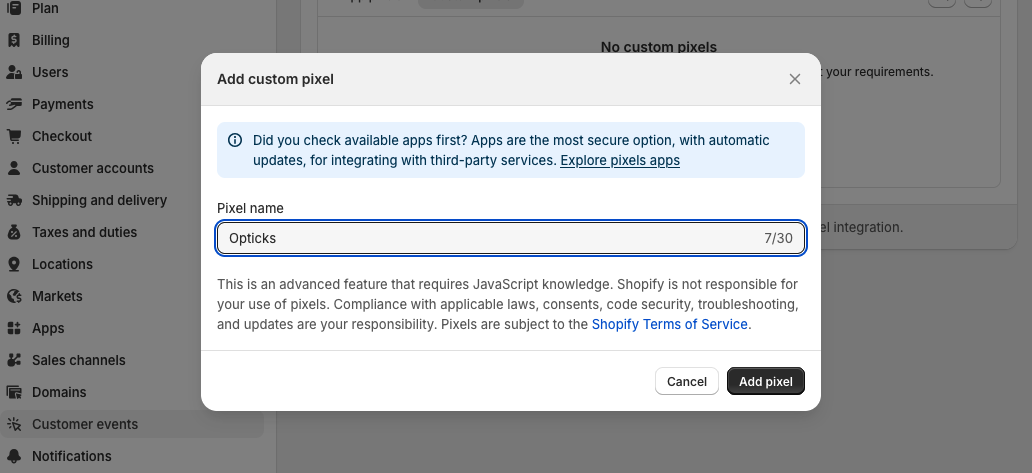
Select More Views and then Custom Pixels. Press on Add custom pixel
Name your custom pixel "Opticks"
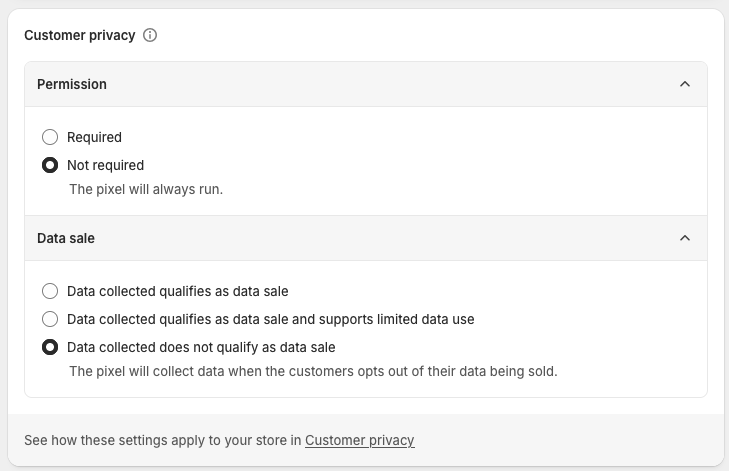
Configure the pixel privacy settings:
- Permission: Set to “Not required” - The pixel will always run.
- Data sale: Set to “Data collected does not qualify as data sale.”
Now, in the code part, copy the following snippet:
//Replace this with your Opticks sensor ID
var sensorID = "REPLACE_ME";
var s = document.createElement('script');
s.src =	"https://opticksprotection.com/o/" + sensorID;
document.body.appendChild(s);

//Conversions Code
var d = 0;
function c(s, h, r) {
	if (!d) {
		d = 1;
		document.body.appendChild(Object.assign(document.createElement("img"), {
			style: "display: none; width: 0; height: 0;",
			src: "//opticksstatic.com/conversion?s="+s+"&h="+h+"&revenue="+r
		}));
	}
}
analytics.subscribe("checkout_completed", function(e) {
  var m = document.cookie.match('(^|;)\\s*opticksid\\s*=\\s*([^;]+)')||[];
  var rev = e.data.checkout.totalPrice?.amount || 0;
  var s = m[2]||'', h = window.optHitId||'';
  if (s || h) c(s, h, rev);
  else window.addEventListener("opticksEvent", function (e) {
		c(e.detail.s, e.detail.opticksClickId, rev);
	});
});
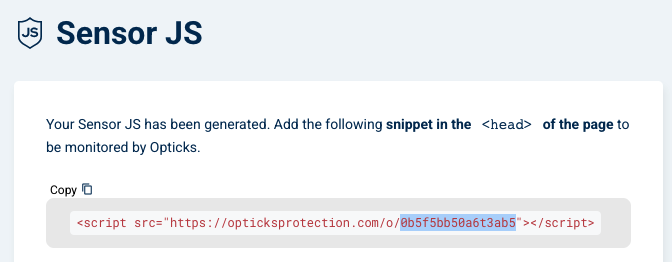
It is vital that you replace the var sensorID = "REPLACE_ME" for your Opticks JS sensor id. You can find it in your Opticks Sensor JS configuration page here: https://app.optickssecurity.com/setup/sensor-js
The Sensor ID is the last part after the /o/ segment, see the following example with the Sensor ID highlighted:
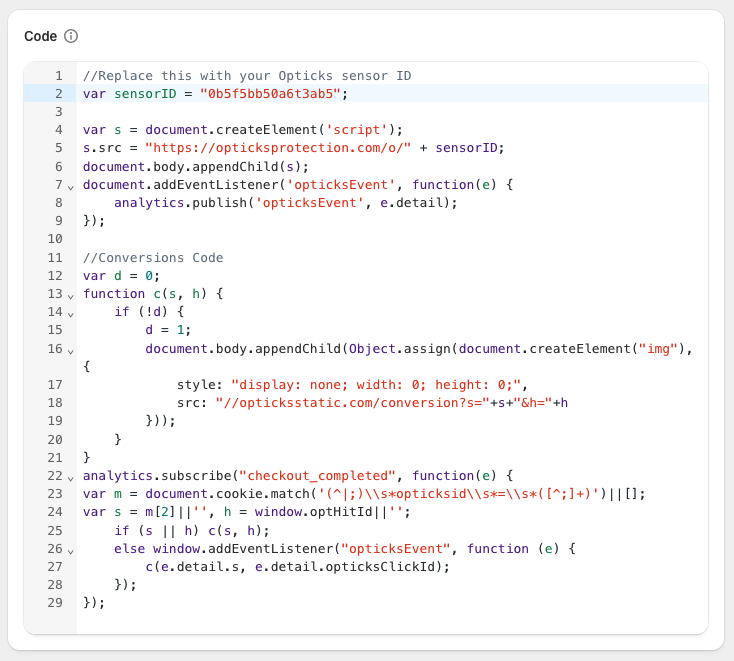
Copy it, and replace the code snippet "REPLACE ME" for your Sensor ID. The result should look similar to this:
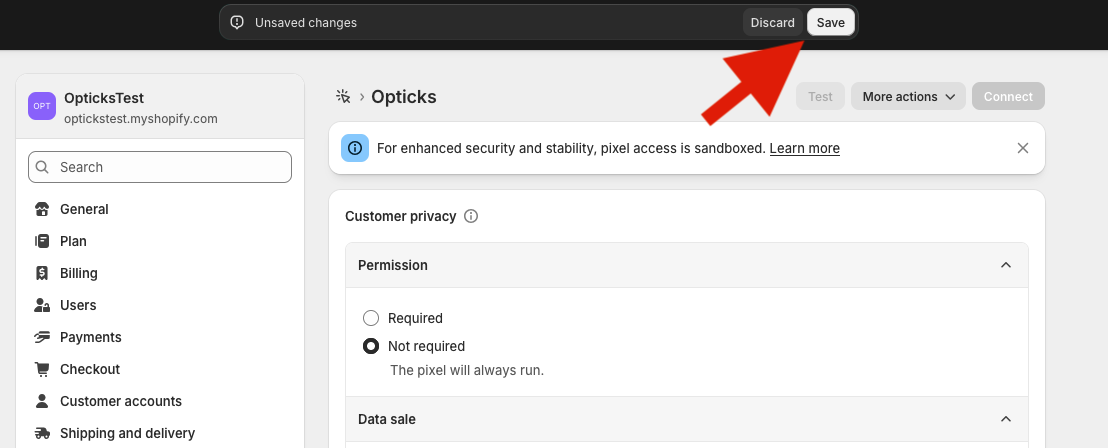
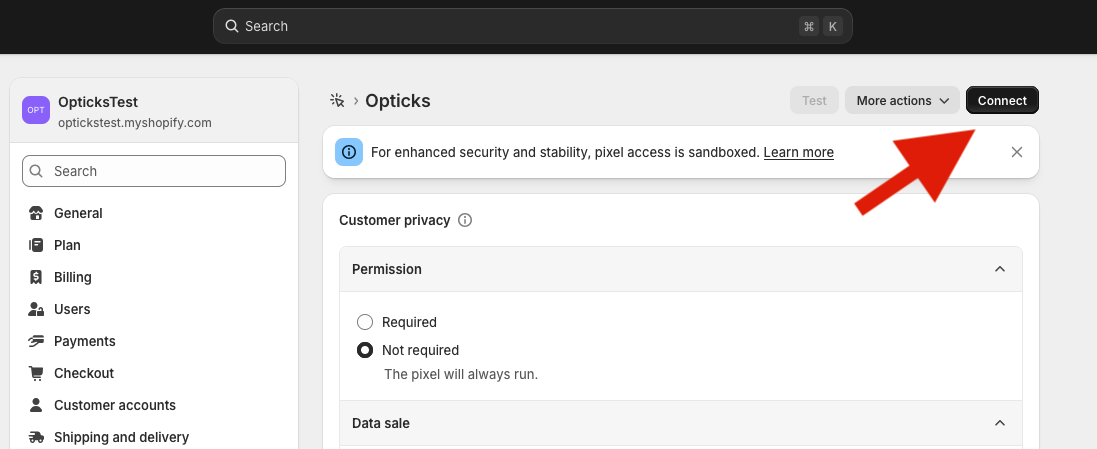
After that, click Save and then Connect
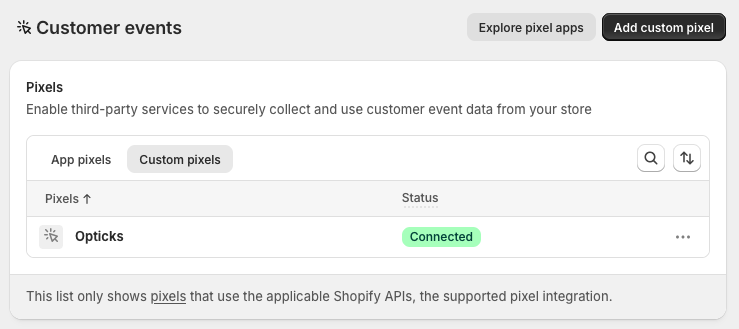
Finally, go back to your Customer Events screen and make sure the pixel is Connected.